

Dashboard Overview
Understanding your project performance metrics and calculations.
Dashboard Overview
Your dashboard provides a comprehensive snapshot of your project's health. Below is a breakdown of every metric, what it means, and how it is calculated.
Note
All metrics are based on data collected from users visiting your website with the analytics script installed. Ensure you have set up the tracking code correctly to see accurate data. Here all numbers are from a demo project.
Dashboard Sections
- here is a quick overview of the main sections , this is a demo site so value are change base your website data. keep reading for detailed explanation of each metric and how to interpret them.
This is give your site overview data base on your website data keep reading
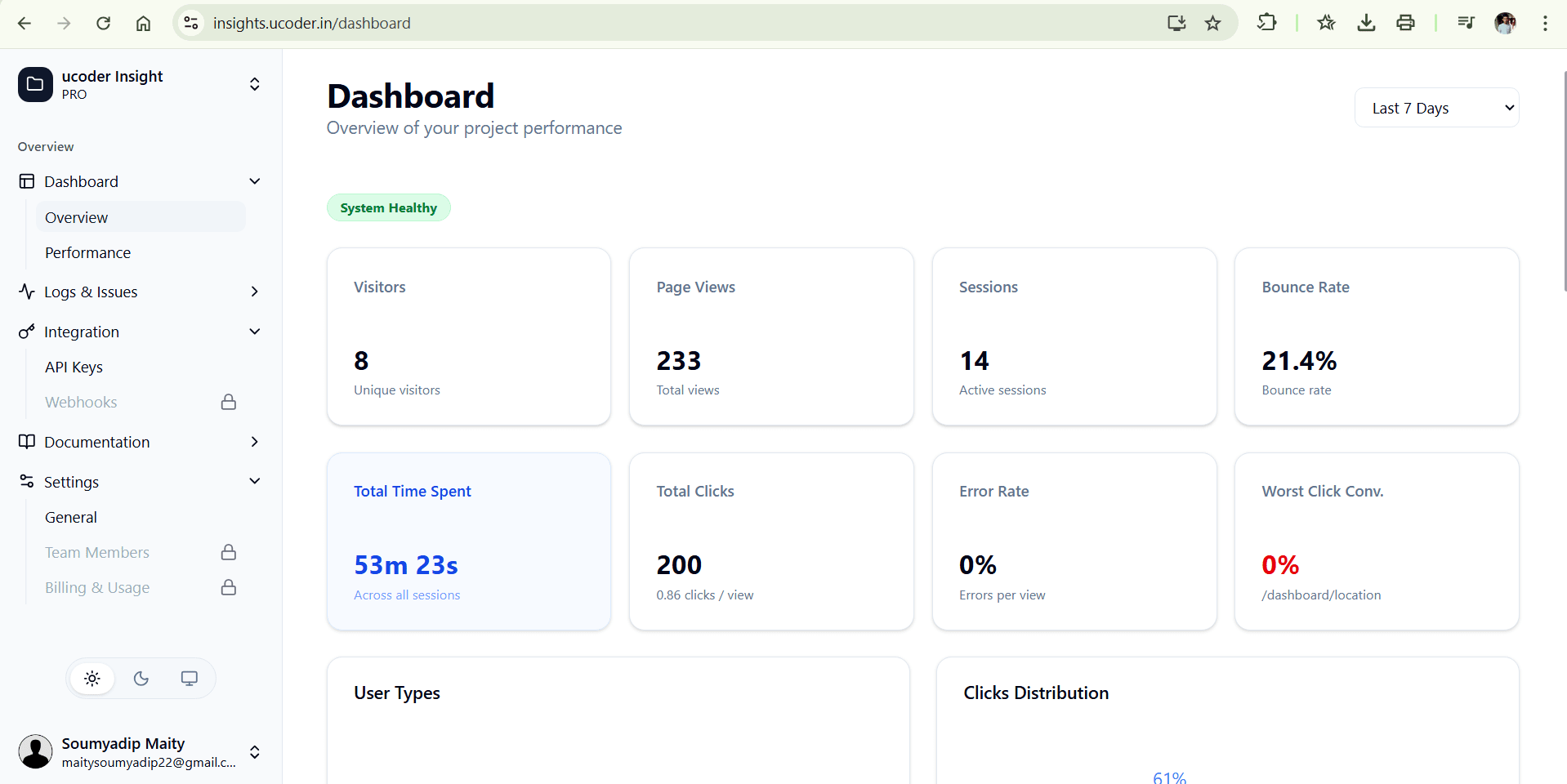
Dashboard Metrics Breakdown
- visitors: Total number of unique users visiting your site.
- page views: Total number of pages loaded. Multiple views by the same user count here.
- sessions: Periods of active usage. A session ends after 30 minutes of inactivity
- total time spent: Cumulative time users spend on your site across all sessions.
- total clicks: Total number of clicks on buttons or links.
- error rate: Percentage of page views that resulted in a JavaScript error.
- worst click conversion: The page with the lowest click-to-view ratio.
Error Analysis
Error Rate
Value: 30.3% (Errors per view)
Critical Warning
A 30% error rate is very high. It means roughly 1 out of every 3 page views crashes or throws a JavaScript error.
- What it means: This is the percentage of page views that resulted in an error.
- Calculation:
(Total Error Events / Total Page Views) * 100. - Worst Error Page:
Home(9 errors). This tells you exactly where to start debugging.
Charts & Breakdown
User Types (New vs. Returning)
- New: Users visiting for the first time in the selected date range.
- Returning: Users who have visited before (identified by IndexDB & local storage).
Clicks Distribution
Example: Other (85%) vs Top (/form) (15%)
This pie chart shows which pages receive the most physical interactions.
- Insight: Even though "Home" might be the Most Viewed page (15 views), the
/formpage is the Top Clicked page (17 clicks). This means users are highly active on the form.
Duration Overview
Example: Average: 0s vs Top Page (/form): 5s
- Top Page: The specific page where users spend the most time reading or interacting.
- Worst Page: The page users leave the fastest.
- Calculation: We track the timestamps between page entry and exit (or next navigation).
Summary of "Top & Worst"
Based on your current data:
| Metric | Page | Value | Insight |
|---|---|---|---|
| Most Viewed | Home | 15 views | Main entry point. |
| Top Clicked | /form | 17 clicks | High engagement area. |
| Worst Error | Home | 9 errors | Needs immediate fix. |
Performance & Web Vitals
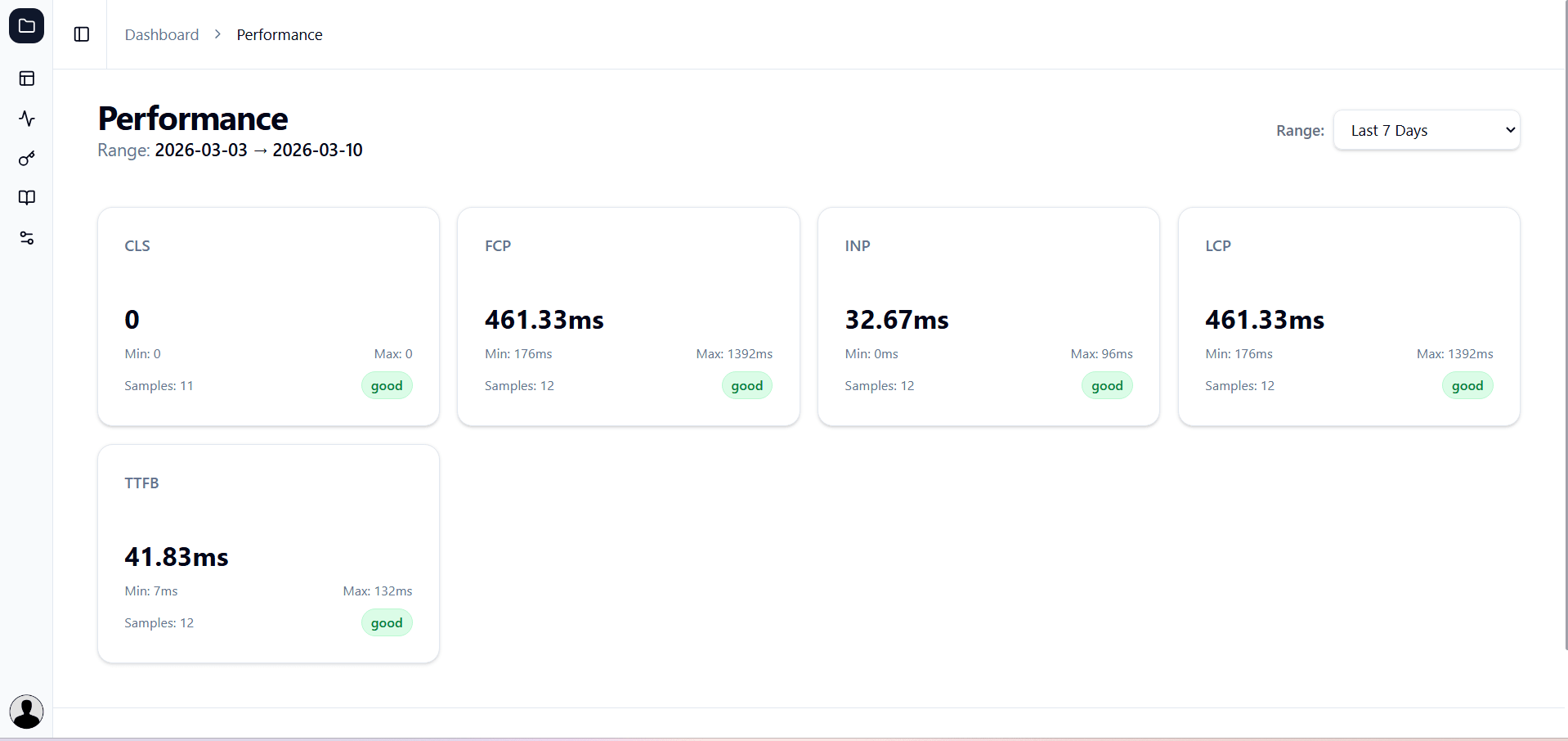
This section measures the Speed and User Experience (UX) of your website based on real user data (RUM - Real User Monitoring).
Understanding the Metrics
We track Google's Core Web Vitals to help you improve your SEO score.
LCP (Largest Contentful Paint)
CLS (Cumulative Layout Shift)
INP (Interaction to Next Paint)
TTFB (Time to First Byte)
Performance Benchmarks
How do we decide if a score is "Good" or "Bad"? We follow Google's Web Vitals standards.
| Metric | Good | Needs Improvement | Poor |
|---|---|---|---|
| LCP | Less than 2.5s | 2.5s - 4.0s | More than 4.0s |
| INP | Less than 200ms | 200ms - 500ms | More than 500ms |
| CLS | Less than 0.1 | 0.1 - 0.25 | More than 0.25 |
| FCP | Less than 1.8s | 1.8s - 3.0s | More than 3.0s |
Note on 'Samples'
The data shown is not a simulation. If you see Samples: 5, it means we
collected performance data from 5 real users visiting your site in the
selected date range.
Custom Events
Learn how to implement custom event tracking in Ucoder Insight. Understand the data structure, usage examples, and best practices for tracking specific user interactions like 'Add to Cart', 'Form Submission', and more.
Locations & Device Analytics
Analyze visitor locations (countries, cities, coordinates) alongside devices, operating systems, browsers, screen sizes, and hardware performance to optimize your website's user experience.